Introduction
Welcome
Here you will find everything you need to upgrade yourself from a frustrated “computer user” to a competent tech operator, capable of wielding powerful tools through the force of Willpower to do Good. We call this art “Neuromancy.”
Important
Whenever you see an indented textbox or admonition (such as a Note, Tip, Important, Warning, or Caution), please carefully consider the message, and/or complete the task. DO NOT TREAT THESE AS OPTIONAL!
Structure
These guides are broken down into skill levels, much like martial arts, each containing digestable courses on a range of topics.
Important
Take the courses carefully, one at a time, in order! Set aside a time when you can focus and give the material your full attention, at your own pace, repeating and practicing as much as you can stand. This creates “muscle memory.”
Get Started
Ready to take up training in the digital arts? Begin your journey…
White Level
The first level is an introduction to foundational skills and underlying philosophy. You will also learn about the Neuromancy platform, what you will need to get started, and what to expect from training. This course starts, as it should, at the beginning. Don’t worry if you come across a term you do not understand early in this level - all of these will be defined within the first few courses.
Tip
Complete every course, in order! If you already have exposure to the skills in a topic, great - complete the course anyway. It won’t take long, and it will further your success.
Neuromancy 101
Welcome to your first course in the White Level training curriculum!
This brief course will provide an overview of the following:
The Neuromancy Platform
Neuromancy is a platform for transforming the dedicated student into a competent technical operator. This can take on many forms. You might just want to perform better in an existing role. Maybe you are looking for a new direction in life. Perhaps you feel a deep calling to take up the Great Work - disciplined acts of Willpower for Good.
Note
Please read the entire Neuromancy About Page
Tools and Services
Neuromancy is considered a “platform” because it offers a wide range of knowledge, skills training, and tools. These are generally available from the primary website at https://neuro.black.
The main website is written entirely from scratch with the Neuromancy Mission and visitors in mind. As such it was built to be lean, secure, and robust. No javascript whatsoever is used.
Subdomains, such as https://docs.neuro.black, where you are now, all represent a unique tool or service. Due to time constraints, this will often use software that was not written by the Neuromancy team. This software is all carefully selected, based on the following criteria:
- Does the job well
- Secure
- Open Source
- No/minimal javascript
People
People are the most important part of this platform. There are several ranks of beings here at Neuromancy:
| Rank | Minimum Level | Description |
|---|---|---|
| Guest | - | A visitor that has not completed the White Level material. |
| Contributor | - | Any guest that is actively showing good Will through action, such as providing assitance in a public chat/forum, or making code or content additions or fixes to the platform. |
| Member | White | Any guest that completes White Level training and commits to regular donations. |
| Operator | Green | Any member that completes Green Level training and undergoes selection and testing by Architects. |
| Special Operator | Black | Any member that completes Black Level training and undergoes a special selection process by Architects. |
| Architects | Invite Only | Usually Black Level or above, apex Operators with a proven track record of leadership. |
Neuromancy Architects are carefully selected by invite only, and have all demonstrated a commitment to the principles of the project, usually for many years, before acceptance. Any gross violations of Natural Law (murder, assault, rape, trespass, theft, coercion, or deception) will be grounds for immediate dismissal.
Members and guests are expected to quickly learn and abide by the Laws of Nature in relation to morality. These are Common Sense principles which are easily learned, although they may take some time to fully assimilate into one’s life, work, and personal mission. These are not simply rules, but spiritual bonds (regardless of religious beliefs - although they align with most practices) that we take very seriously. These Laws underpin the entire project, and it is required that you understand and accept this before passing the White Level training. Natural Law is introduced in the next course.
Disputes
Any disputes between people will be resolved by a neutral (uninvolved in the incident) being, selected from higher ranks first, decending if neutrality is in question. Both parties in a dispute will select and agree to an arbitrator. In the event that consensus cannot be reached, an Architect will step in to arbitrate.
Training Overview
Training will be offered in many forms. Everyone has a slightly different learning style, so be aware of your strengths and weaknesses. Some material you will enjoy, and some you will enjoy less - if something is difficult, spend more time on it.
The skills taught here are critical for anyone that wants to control their own destiny in the information age. Therefore all essential knowledge and skills will be provided without restriction. The creation and maintenance of this platform are not without sacrifice, however. For this reason, donations are accepted at any time, and at various donation levels, additional tools, training, and coaching are available. The reasons for this are twofold:
- Regular donations represent a commitment, both to yourself and to the mission
- The Neuromancy platform requires resources to provide high value service
Warning
At Neuromancy, we generally do things the hard way. We believe understanding at a deep level usually trumps having something done for you. If you don’t have the critical skills of focus and patience, you Will learn those here. Nothing is perfect, and we will point out when and why a compromise is deemed necessary.
Training Levels
As suggested in the introduction, training progression is loosely based on a martial arts system. In physical martial arts, belts may be awarded when students can demonstrate certain skills in an art. The same idea is applied here. Passing a level test represents basic competency in that level’s material, not expertise. Be aware that learning is a lifelong journey, and mastery of the basics is a solid foundation to pursue.
Level Progression
- White
- Yellow
- Orange
- Green
- Blue
- Brown
- Black
Each level has requirements and challenges that must be passed for advancement.
Achieving “higher” levels does not insinuate that a being is any better than someone at a “lower” level. We all remain equal; some have just progressed further on this particular path. Humility is valuable in all of life’s concerns, and it is recommended to avoid giving advice unless it is requested. Be sure to balance that by offering help whenever you can. Please show respect to everyone here - we all bring unique value to this project.
Requirements
Here you will find the tools that you need to get started, as well as important recommendations on your training environment.
Tip
Essentially all you need is a clean, comfortable space and a relatively modern laptop or desktop running a Linux Operating System. Below are details that you will likely want to consider if you decide to pursue training seriously.
Environment
The physical and digital worlds mirror one another, and your physical space is just as important as the hardware and software that you operate. When possible, try to use a dedicated space. An office or spare room may be ideal, however if space is constrained, just ensure that when you are at your workspace you are able to “shift” into ‘focus mode.’
- Begin Where You Are
- The most important thing is that you train. Resist the urge to buy new equipment, unless necessary. You can (and likely will) upgrade gear throughout your journey.
- Clean Space
- Ideally very little is in your field of view. Your monitor, necessary peripherals, and perhaps notebook/writing tools (if desired) are all you need.
- Desktop
- This can be any solid work surface, as sturdy as possible, clean and clutter-free. If you have to take everything on your desk and put it on the floor during training, so be it. Sitting or standing desks are fine, just be comfortable and take breaks if your body asks.
- Seat
- Be comfortable.
Hardware
The digital world is spawned from the physical, and your ability to manipulate this world will start with the physical tools you wield.
Tip
Please visit the Community Forum for examples, or ask for help in the Community Chat.
-
Laptop or Desktop
- Mobile devices, including tablets, are NOT built to be productive devices. If you must/strongly prefer to use a mobile device, it MUST run Linux, and you need to augment it with a keyboard and mouse (or trackball), at minimum.
- Getting started on older hardware (even 10-15 years old) is fine, but as you progress, you will come to appreciate more powerful compute and/or particular features. Upgrade when it is sensible for your progression and your budget.
- If you decide to purchase hardware, consider the addage: “Buy once, cry once.” Consider options carefully. It is generally better to research while building funds for proper gear than to make cheap purchases on a whim. See the forum/chat for more help.
Item Minimum-ish Spec Recommended Spec CPU 2012 or newer / 4 Cores 2016 or newer / 8+ Cores RAM 8GB 16GB+ Storage 256GB SSD 512GB+ SSD or NVMe -
Home Network
- Get the fastest option available to you. 1Gbps speeds are becoming widely available and are not expensive (more than this is usually bottlenecked by your hardware - this will be discussed in Networking courses).
- You need a bare minimum of 50 Megabits per second (Mbps) download speeds from your Internet Service Provider (ISP).
- If you are in a rural area, Starlink may be your best option.
-
Mobile Device
- Not immediately required - see Mobile Devices courses for hardware details.
- Only Linux and Graphene operating systems are covered.
Software
These tools reside soley in the digital space. Be aware that software is abundant, but quality software is not.
- Operating System
- Linux or BSD ONLY
- Debian-based is recommended to start
- If you have never used Linux, ZorinOS is a great option
- You will understand and demo several OSes throughout your training, and you will develop preferences.
Natural Law
This is a very short course which will cover the principles that underpin this project.
There are only two sections:
Introduction
Natural Law can be simply explained in a phrase, and most of us are familiar with some variation of the famous one-liner:
“Do for one who may do for you”
- The Eloquent Peasant (Egypt), circa 1850 BCE
“Treat others as you treat yourself”
- Mahabharata, circa 950 BCE
“Hurt not others in ways that you yourself would find hurtful.”
- Buddha, circa 500 BCE
“Do not do to others what would anger you if done to you by others.”
- Socrates, circa 400 BCE
“Do to others as you would have them do to you.”
- Jesus, circa 30 CE
… and there are many more. Despite the simplicity, it can take quite some time for the modern human to deeply understand and implement this philosophy into their own life
Note
It is presumed for the duration of this course that the discussion is within the context of physical reality. It’s possible (probable?) that there is something beyond this, however since the problems we seek to solve exist on this plane, that’s our backdrop. If you’re currently vibrating in and out of other dimensions, perhaps this course doesn’t have much to offer you.
What is Natural Law?
Natural - Of Nature, inherent, part of the fabric of reality, non-man-made
Law - Immutable, binding conditions overseeing human behavior (in this context)
Note
Natural Law is just one name for this phenomena. It is also known as Universal Law, Karmic Law, Reciprocity, God’s Law, The Golden Rule, Moral Law, Cause and Effect, or simply God or Nature. If you have a preferred name, please use that.
When understanding the word Law, do not think of Man’s legal systems. These are, at best, a flawed facsimile, and more commonly, blatant methods of control. Instead, think of the Laws of Physics. These are observable, provable, and built into the fabric our reality. We don’t fully understand these mechanisms, especially how they came to be, but that doesn’t mean we don’t act in harmony with them on a daily basis.
Our belief in the effects of gravity are irrelevant when it comes to stepping off a ledge - it can be repeatedly proven that we will be pulled towards the ground. Similarly, if we continually treat others poorly, or ignore/support those who do, then we will only be pulled towards a hellish society. Conversely, if we are excellent to one another, and use our Will for Good, we can become limitless.
A great resource on Natural Law is the teacher Mark Passio, and his website What On Earth Is Happening. You can get a good overview by watching the 1 hour documentary, or if you have the consitution, the deeper dive 9 hour seminar (in 3 parts on the Videos page).
Why
What does this have to do with technology training?
One cannot be neutral on a moving train, and the train passed the Global Surveillance Station long ago, and is rapidly approaching the Totalitarian Terminal at the time of writing (mid-2020s). Understanding and living by Natural Law is THE key to the Kingdom of a Free and open world. There is no Freedom without this knowledge and action upon it. Natural Law is EVERYTHING.
This course is a basic introduction to Natural Law and how to apply it in your life. As stated above, it is simply stated, yet potentially challenging to implement. This is not optional or ignorable. This is how our reality works, and ignorance of these Laws is THE method of control that must be overcome.
Application
Many good things come in threes and there are 3 essential components to our ability to Create. This is sometimes known as the Trinity, Trivium, or many other names. They are essentially Knowledge, Understanding, and Action (Grammar, Logic, and Rhetoric in the Trivium Method). There are numerous variations to explain this, and since we are about to begin technical training, we will use the metaphor of a computer for this lesson. We’ll dually understand how we Create, as well as how to use a computer to do the same.
Knowledge / Input
We are Created without (having forgotten?) any stored knowledge. As soon as it becomes possible (sometime in the womb), we begin intaking information via our senses. This goes on throughout our lives, however as the saying goes “garbage in, garbage out.” If you are fed primarily nutrient-deficient food, contaminated water, mindless TV, vapid social media content, AI slop, etc, and live a sedentary lifestyle, then you will be unhealthy and ignorant. Conversely, if you eat clean foods, exercise, read, study, and otherwise intake higher quality materials, you will be energetic and intelligent. These are the raw inputs, and in the case of information, knowledge, that we can act upon.
A computer, ultimately being a man-made facsimile of Man, works similarly. Critically, know that there is no intention to say that machines are, or can be, the same as Men; they almost certainly cannot. More on this in future courses. For the sake of our metaphor however, it works. A computer is created without any information on it. At the lowest levels, it is simply circuits which can guide electricity based on input. That input comes from a keyboard, mouse, microphone, camera, or other sensors or computers. This is the raw data that the machine can act upon.
Understanding / Processing
It’s one thing to have quality inputs, but once received, they must be understood. Imagine being given a book every week, and each book taught you a useful skill. If you are given a short paper every day for a week that explains a skill, and never read them, you won’t receive any benefit from these inputs. Alternatively, if you give some of your Time and Attention (the two real currencies) to reading the material, you have the opportunity to learn 7 new skills. Learning a skill means a lot more than reading about it once - you must re-read and thoroughly comprehend what it means to truly know and implement this skill by meditating on and manipulating this information in your mind. Then of course, you must practice, practice, practice to be competent (muscle memory).
A contemporary computer receives information via inputs and then manipulates it via the Central Processing Unit (CPU). You may input text via a keyboard and then format that text in a word processor in order to write a letter, report, or story. This is the analogy to the thinking required for a human to attain comprehension.
Action / Output
Perhaps the hardest step is to act on one’s understanding. Acquiring knowledge and understanding and never acting on it is akin to hoarding; pretty selfish if you really think about it. Imagine acquiring a lifetime of knowledge, and then dying without using a skill to help someone, or better yet teaching them that skill. When knowledge and skills are shared, everyone benefits. It is often found that teaching a thing can help solidify one’s ability, and that shared knowledge will end up benefiting more down the chain. This is the notion of “paying it forward.” Natural Law states this will come back around to you. Again, “Do for one who may do for you.” Your outputs (actions) will speak for themselves, but there may also be a product of your labor, which can nourish you and/or others.
Computers similarly produce outputs, whether completed mathematics, digital or physical media, communications, etc. Many times an output will be stored in memory to be read, edited, or used at a later time. Memory comes in two forms on a computer:
- Short-term: Random Access Memory (RAM) - this is memory that is actively being used. If something isn’t actively used, it is best to shut it off in order to free up RAM, which is expensive.
- Long-term: Storage drives hold data for future retrieval. The most common forms of storage are:
- Hard Drive Disks (HDDs) - mechanical, spinning platters. Great for high capacity storage (Terrabytes are inexpensive).
- Solid State Drives (SSDs) - integrated circuits, no moving parts. More expensive, much faster, great for running software (including your Operating System).
Care
Doing anything requires the Generative principle of Care. Obviously, if you don’t Care about something, you’re never going to give it your Time / Attention. This seems basic, but it cannot be understated. Uncountable resources are spent getting you to care (and part with your resources) for things that benefit others, or worse, benefit nobody. Consider how much time you spend consuming (information, food/drink, energy, products), and then honestly compare this to how much time you spend Creating any of those same things. As discussed in future courses, balance is a key concept in life. Before you finish this White Level material, you will have begun to form the habit of Creation. This can change your life in massive ways, as it has many before you.
Freedom Technology 101
This will be the last “theory” course before hands-on training begins. We need to understand what we mean by Freedom Tech, and how to understand the various trade-offs involved with selecting the best tool for a job.
This course will introduce basic terms, definitions, and methodology for understanding and selecting technology that is most likely to benefit you. This will be relevant throughout our training.
Introduction
What is meant by “Freedom Technology?”
Freedom technology is any creative tool that is built with principles that put first the beings that need to use that tool. The opposite of this would be the myriad of “Big Tech” options that generally exploit the user as a product, at best. When referring to software, we will often call this spyware, malware, or adware. These terms accurately reflect the True purpose of the tools.
Freedom-respecting technological tools are extremely powerful and widely available. Despite this, the allure of “convenient” alternatives remains the default, desipte the massive costs incurred by becoming the product of these services.
Terms
Below are categorized terms you will hear often, let’s get them defined now. You may want to use this page as a reference, and it may help to save or bookmark it until these terms are familiar to you. This is not exhaustive, and it is not expected that you will memorize these immediately.
Natural Law
- Natural Law - Immutable and binding conditions that dictate the consequences of human action.
- Morality - Right and wrong action. Often used as a synonym for Natural Law.
- Sovereign - Originally from the Latin supranus, meaning “being above.” One who is Sovereign does not need a ruler, because they rule themselves in harmony with Nature.
Open Source
- Open Source - Something that can be modified because its design is publicly available. There are endless types of ‘licensing’ within the Open Source community, but for our purposes, we just need to know that we can find and audit everything needed to recreate a tool.
- Closed Source (Proprietary) - The opposite of Open Source. Design is privately held by creator, generally under threat of legal action if copied.
- Licensure - In the context of Open Source tools, a license is the author’s intended use, and regulates how their tool is to be distributed. Common Open Source licenses include the MIT and GPL, but there are far too many to list. Theoretically, a license creates a legal defense of ‘intellectual property.’ At Neuromancy, we understand the intent, but generally consider licenses to be nonsense (see the Neuro website license), and defer to Natural Law and Common Sense respect to the wishes of a tool’s creator.
- Big Tech - These systems have been weaponized against the user in most cases, likely despite the Good intentions of their engineers. We hold no ill-Will towards individuals at these organizations, but we refuse to use, recommend, or assist any of our fellow Men/Women in the use of their products. We believe they are moving our species in the wrong direction and are unlikely to change.
General Tech
- Hardware - Physical components of a tool
- Software - Digital components of a tool
- Firmware - Technically software, but very low level. Hardware usually needs this to run software, such as an Operating System.
- Architecture - Computer architecture is the low-level makeup of a machine and dictates what software it can run. Commonly, we will run into x86 and ARM architectures.
- PC - Personal Computer, a “mini PC” is just a compact version. Both are used as desktop computers and usually require a monitor and keyboard for desktop use.
- Malware/Spyware/Adware - Mal, as in, malicious. These are softwares that are designed to act as they are named. Big Tech Operating Systems and software are usually included in this category, as far as we’re concerned.
Operating Systems
- Operating System (OS) - Key software components that allow a user to interact with hardware.
- Unix - A family of Operating Systems (OSes) originally dating back to the 1960s.
- GNU - a recursive acronym that stands for Gnu’s Not Unix. The GNU project was a series of tools and utilities built in the open. Once Linux was created, GNU/Linux became a fully functional OS, and in later years simply became known as “Linux.”
- Linux - A broad term for a class of Unix-based OSes, although it was originally just a core OS component called a kernel, which is responsible for more direct interactions with the hardware.
- Berkeley Software Distribution (BSD) - Another class of Unix-based OSes, usually extremely lightweight, even more so than most Linux OSes.
- UI - User Interface
- CLI - Command Line Interface
- GUI - Graphical User Interface
- Desktop Environment (DE) - This is essentially the entirety of the GUI that you interact with on your OS.
Networking
- Client - A node requesting data or using a service
- Server - A node accepting requests for (serving) data, or providing (hosting) a service
- Peer - A node which both requests and serves data, or provides one end of a mutual service
Methodology
Some very common questions are “How do you decide what tools to use?” “Is ‘X’ safe/private/secure?” “Is ‘X’ better than ‘Y’?”
Tool selection is a skill all its own, which you will hone over time. You will almost certainly grow opinions or preferences that lead you to use tools that are not strictly recommended here. You will also likely discover tools we don’t know about (please share!). All this is to say that we can share the Neuromancy Methodology, which has served us well for decades, and make no claim that it is perfect.
Some suggestions are offered in this section, but please join the discussion in our community channels for the latest sentiment from the team and your peers.
General Guidance
Start where you are. It is more important to act with an imperfect tool than to not act. It is easy to get paralyzed by the limitless options, so make a quick decision based on:
- Is it purpose-built as a solution for your problem?
- Reputation of the creator and their tool - are other people already solving your problem with this?
- Monetary cost and purchase options (can you pay privately - cash, crypto, etc?)
- Cost in Time - what will it take to get the tool working? If significant, is it worth the investment?
If the decision was the wrong one, at least you can rapidly pivot. Adaptability is a crucial skill. Get used to the idea that your first choice may not be the best, and something that has worked for years, may not be the best choice for the future.
Check out the website of a tool’s creator. Read the About page. Do they have a Mission? Check out any auxillary material, such as social media feeds, reviews, etc. What tools do others in our communities use to solve the same/similar problems?
Selecting Hardware
In the mid-2020s, hardware, from a Freedom perspective, is generally unacceptable. We have to make do with what is available, and be grateful for the currently expanding Open Source hardware ecosystem.
Buying New
When buying new, we want to “vote with our money” and support companies that are mission-aligned. Your funds are going directly to a company, so this is a vital decision. Below are a few options.
- Star Labs - Linux-first Tablets, Laptops, and MiniPCs.
- Framework - Modular, upgradeable laptops and desktops. Bring your own OS.
- System76 - Linux laptops, desktops, mini PCs, servers, and more.
- Mark37 (reseller) - Privacy-focused laptops and mini PCs.
- Privacy Academy (reseller) - Privacy-focused laptops and mobile devices.
- GL-iNet - Plug’n’play routers running OpenWRT with a proprietary GUI.
- Protectli - Mini PCs for routers, etc. Must bring your own OS.
Buying Used & Refurbished
When buying used gear, you gain some risk and potentially lose some lifespan in exchange for drastically reduced prices. Refurbished means that a used device has been refreshed in some way, ideally with new parts. This term may mean something different across sellers, so be sure you understand what you are buying. Below are a few options.
- Local is great, buying from a known being is ideal. Reach out in your communities or organize a market yourself.
- Swappa - Market for used electronics sellers. Seller reputations are from a review system.
- BackMarket - Market for refurbished electronics, including home appliances.
Selecting Software
Almost all software is bad. You have probably experienced this. After a few more courses, you may realize the current situation is quite gross, especially with popular ‘Big Tech’ products. Some software is very good. Like most things, it boils down to the Care, Time, and Attention the creator puts into it.
In the vast majority of cases, the tools we use will be free/donation-based. This really drops the barrier to entry. Our biggest concern becomes the potential drain on Time and Attention if a tool ends up being the wrong one for the job. This will also allow you the opportunity to discover which tools truly benefit you, so that you can donate some value back to those projects. Donations can really mean a lot to a creator.
Technology Operations 101
Welcome to Tech Ops 101! You have made it through a lot of background and theory, and your first hands-on material will start in the second section below. This will be the longest course in the White Level material, as well as the most challenging. Upon completion, you will have a solid foundation with which to wield Linux in a Sovereign manner.
Linux
This section will introduce the family of Operating Systems commonly referred to as Linux. The knowledge and skills you acquire here will also apply to OSes more broadly, especially in the Unix family (macOS, BSD, Android, etc). It cannot be forced, but it is HIGHLY recommended that you follow along with a Linux OS. Big Tech options are considered malware/spyware/adware and off-topic for the entire platform. Community assistance is provided ONLY for Open Source options, and the bulk of that community is likely most familiar with Linux.
Getting Started
You don’t necessarily need a Linux computer to begin this course. There are a number of ways to use a Linux environment. You can try any of the following (sorted easiest to hardest):
- DistroSea - free ephemeral Linux desktops in your browser (select Linux Mint or Zorin)
- OnWorks - another option of above (select Ubuntu or ElementaryOS)
- If you are already familiar with Virtual Machines (VMs), you can run a Linux VM.
- Run a “LiveUSB” - this is an install of an OS onto a USB drive.
Caution
Remember - be careful with your time! Learning something foreign (like running a VM or a LiveUSB) can quickly become exhausting if it doesn’t immediately go right. Use what works, you will learn all these skills in later courses.
That said, it is recommended, and you will likely want a Linux machine very soon, for the Yellow Level material. We will learn how to flash an OS to existing hardware early in Yellow Level, so if you prefer to DIY, stay tuned.
If you wish to purchase a pre-built device, review the Freedom Tech 101 Methodology and be sure to jump into our Community channels for assistance. Please complete your White Level first, and make sure you have a confident selection using the aforementioned resources, especially if on a tight budget. Buy once, cry once!
What is Linux?
Originally, Linux was a kernel - a critical OS component that manages booting and basic hardware operations. It was created by a Man named Linus Torvalds, who maintains the core project to this day. This kernel was the ‘missing piece’ to a series of tools from The GNU Project, and after it was made available, GNU/Linux was born. Today, much to GNU-purists’ chagrin, the entire family tree of Operating Systems that stemmed from GNU/Linux are now commonly called ‘Linux.’
Distributions
A distribution, or distro for short, is often likened to a Linux “flavor.” Since Linux is infinitely customizable, many organizations have formed to build and share their favorite ways to use Linux. As a result, there are a lot of Linux distributions. These can be broadly categorized based on their positions in the family tree. Below are the most popular distros upon which most other distros you see are based:
- Debian - By far the largest community - meaning the most available support, many builds for beginners. Packages are held back for stability.
- Examples - Debian (the base), Linux Mint, Ubuntu, ZorinOS
- Arch - A ‘rolling release’ distro, meaning updates are shipped as ready and the latest packages are always available. A strong community, but they are not as welcoming and will often just insist that you RTFM (Read The Fucking Manual).
- Fedora - The base for IBM’s RHEL (Red Hat Enterprise Linux). Well-engineered, but unfortunately we will generally avoid it due to trends in IBM’s development of this platform, and it’s attempts to infect the broader Linux ecosystem.
- Android - Familiar as the OS for many phones and tablets, this is also the basis for many other devices, such as TV sets, whiteboards, and automobile infotainment decks. Covered in courses on mobile devices.
There are many others, notably Gentoo, Nix, Slackware, and Linux From Scratch (LFS). We will likely cover these in later Linux courses. That said, we must keep things simple, and therefore documentation and support will be provided mainly for two branches of the Linux family: Debian and Arch.
Desktop Environments
One of the first choices that a distribution will make (or offer, if they support several) is which Desktop Environment to use. A Desktop Environment (DE) is essentially the entirety of the GUI that you interact with on your OS. It is possible to run Linux without a DE. Some prefer to use a lighter weight Tiling Window Manager (TWM), which as you might guess, simply manages tiled windows, rather than providing taskbars, menus, or a desktop. You can also run Linux directly from a terminal shell, something we will get very familiar with in later courses.
There are many Desktop Environments, and plenty of opinions surrounding those options. Here are the most common choices:
- KDE / Plasma - Brings the “kitchen sink” - modern, featureful, and packed with default applications. As you might imagine, this is resource-heavy, and therefore recommended for more modern (or at least powerful) hardware.
- Gnome - Modern, minimal but extensible. Runs on most hardware and brings sensible defaults and basic tools.
- XFCE - Extremely lightweight, minimalist but featureful. Fast and responsive, perfect for bringing old hardware back to life, or if you just like to keep things simple. No frills.
There are, as you may have guessed, many more, and you can start or find further discussion in the community channels. We will cover Tiling Window Managers in later courses.
Heirarchical File System
The Heirarchical File System, or Directory Tree, is how files are organized on most computers, including yours and most servers you visit online. In Linux, everything is treated as a file - files, directories, programs, devices, configurations, everything. Understanding this structure allows you to be deeply familiar with your system, manipulate it, and remain organized with your data.
As the name implies, your file system works as a heirarchy. This is described as a tree because every directory begins at a common root and ‘branches’ out. Although the inverse of a real tree, this structure is traditionally conceptualized as ‘top-down.’ So when a file is in a directory, that directory is said to be ‘above’ the file, closer to the root.
Important
You will now begin to see what are known as “code blocks.” This is indicates it is text from a terminal shell or code environment. The different format, often on its own line, makes it easy to find/copy when working from another window:
code block exampleDon’t worry about the various colors for now, we’ll talk about that later.
Caution
When copying from a code block, it MUST BE EXACT. Typos in commands and configurations will almost certainly cause the majority of your problems.
All directories/files stem from the root, which we symbolize with the / symbol. If your root (/) contains a directory called home, then that would be located at /home. If /home contains a directory called user, then that location would be /home/user (the / symbol also separates directories, and we pronounce it “slash”). Let’s jump into a terminal and get familiar.
We’re going to get started in a terminal. There are many reasons for this, namely, you will at some point need to drop in here as a Linux user. If you find it painful, good, embrace it. Not everyone will become a command wizard, and that’s fine, you just need to know the basics. We will mix in graphical actions shortly.
Basic Navigation
Tip
There are usually many ways to do something on a computer. Learn a few and use the methods you prefer.
Let’s plug in. On your Linux machine, open a Terminal. This is commonly mapped to the keyboard shortcut: ctl+alt+t (meaning you hold down the ctl and alt keys and then tap the letter t). It can also be found in your applications drawer, main menu, or system tray. Try out the following commands (all executed by using the Enter or Return keys) to learn shell navigation.
You will see what is known as the “prompt,” followed by a flashing cursor. Sometimes it is simply a $ or #, and other times it may be used to identify some information. In our example below, it lists the user@host (tester@zorin-testing). The host is simply the name of this computer (used to identify it on a network).
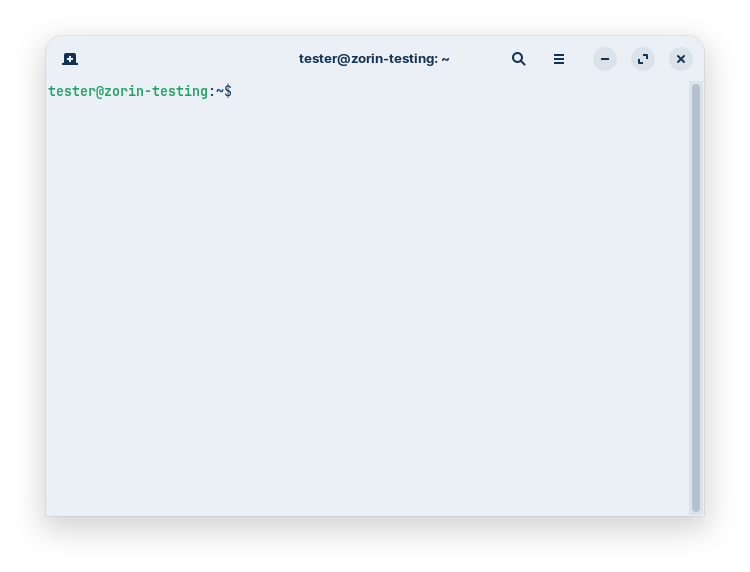
-
pwd- ‘present working directory’ - this will tell you where you are, likely
/home/USERNAME
Tip
When you see a codeblock containing all caps, like
USERNAMEabove, it often means that your machine will show something unique, in this case, the name of your user. - ‘present working directory’ - this will tell you where you are, likely
-
ls- ‘list’ - this will list the contents of the directory you are currently in. If nothing is returned, the folder is empty.
-
ls -a- ‘list all’ - here we have passed an ‘option’ to our command. The
-aoption will list ‘hidden’ files, which are indicated with a.in front, such as.bashrc. If dictated, we pronouce the-as a “tack.”
- ‘list all’ - here we have passed an ‘option’ to our command. The
-
mkdir testing- ‘make directory’ - creates a folder called
testing(you can verify its existence withls)
- ‘make directory’ - creates a folder called
-
touch testing/test0- ‘create file’ - creates a file called
test0- note that it is in thetestingdirectory. Usels testing/to view the contents.
- ‘create file’ - creates a file called
-
cd testing- ‘change dir’ - moves into the
testingdirectory, equivalent to ‘opening’ a folder in the GUI. Your prompt may change to reflect the new location, if it doesn’t, you can verify withpwdor check contents withls.
- ‘change dir’ - moves into the
-
rm test0- ‘remove’ - deletes the
test0file. This is permanent.
- ‘remove’ - deletes the
After all this, your terminal may look something like this demo:
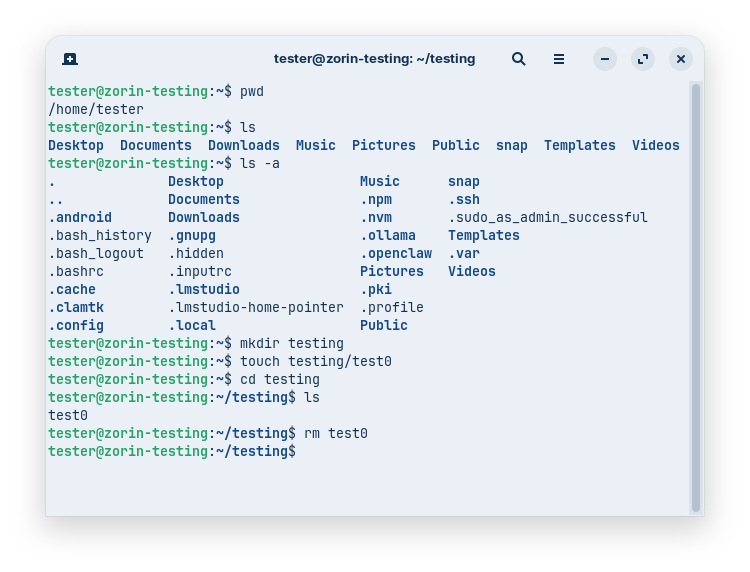
Great, now let’s take a look in a graphical file explorer to visualize all this.
Note
Directory and folder are interchangeable terms.
-
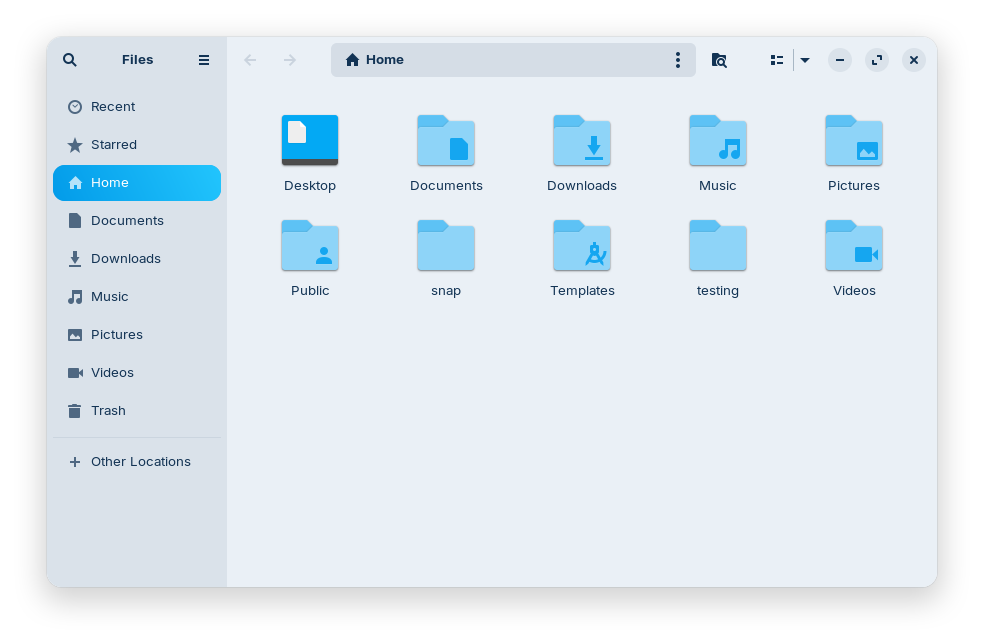
Open up your file explorer. For this demo, we are using Zorin (Gnome DE), and the explorer is simply called “Files.” On your machine, it could be different. For example, the KDE explorer is called “Dolphin.”
- Usually this will open your user’s
homefolder by default
- Usually this will open your user’s
-
You’ll notice the
testingfolder we created is here, click into it. -
We deleted our test file, so the folder is emtpy. Right-click and create a new file of any kind called
test1(right-click the file to rename). The file will appear in the terminal when youls testingor simplylsif you’re already in that directory.
File Manipulations
Let’s learn some more useful commands.
-
Go back to your terminal (or open a new one), and navigate to the
testingdirectory, if you aren’t there already.cd ~/testingTip
The tilde (
~), which we call the ‘twiddle,’ is a shortcut for the current user’s home directory (/home/YOURUSER). -
Let’s attempt something that is not possible - to move a file that doesn’t exist:
mv test9 ..-
mvis the ‘move’ command, and here we are moving thetest9file (which doesn’t exist) to the directory ‘above’ (indicated by the..shortcut) the one we are currently in. Unless you happen to have a file by that name in this directory, you will get an error something like this (circled in red):
- Presuming you created the
-
cd ~ && cp test1 testing/test-copy- Here we are chaining two individual commands. First we change our working directory to
~(/home/YOURUSER), ‘and then’ (&&- the logical AND - it will execute the second command only if the first succeeds) we ‘copy’ (cp) thetest1file into thetesting/directory, with the nametest-copy.
Note
You may have noticed that commands are generally separated by spaces. This is known as a ‘delimiter,’ and acts as a border. Think of this as ‘something ends/begins’ with a delimeter. You will see more styles of delimiters (tabs, punctuation, etc) in the future.
- Here we are chaining two individual commands. First we change our working directory to
-
rm test1 && cd testing- Delete the original file and then change directories into
testing.
- Delete the original file and then change directories into
-
echo "This is a test." > test-copy- ‘print’ (
echo) everything within the double quotes ("") and ‘redirect’ (>- overwrite) it to the filetest-copy. The redirect will overwrite the entire file, so use with caution. If you want to append (write to the end of) a file, use the>>operator.
- ‘print’ (
-
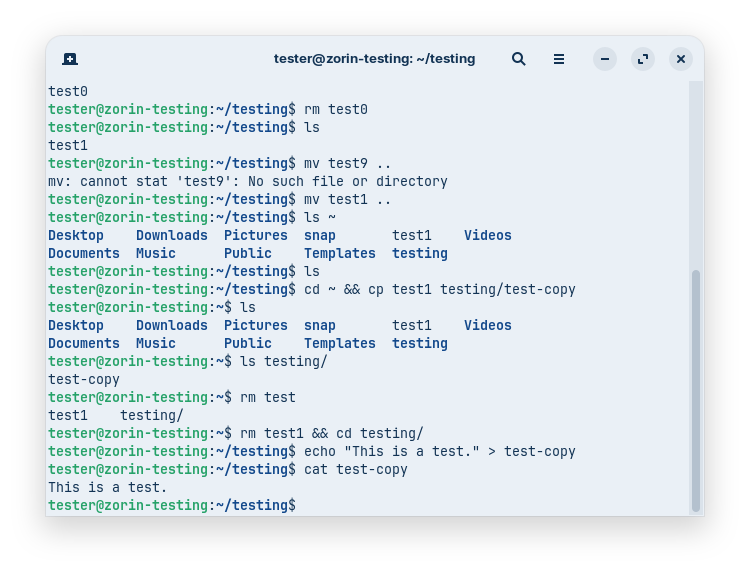
cat test-copy- ‘concatenate’ (
cat) thetest-copyfile. The name means that we can join multiple files and display them, but this is also a nice quick tool to display the contents of a single file. At this point your session might look something like this:
- ‘concatenate’ (
Great work for making it this far! You now know how to navigate a shell session in a terminal and do some basic file manipulations.
At this point, it may seem to you that this was a lot of work for not a lot of result. Perhaps like an early math class you may wonder - when will I ever use this? The answer is difficult to ellucidate, but know that this will help you throughout your journey. If you intend to continue down the tracks of infrastructure, hacking, or programming - these baby steps will be vital to you going forward, and you will want to master them immediately.
Networking Basics
This section will introduce some critical concepts about the current structure of computer networks, and show you how to understand your own network.
A network is simply 2 or more computers linked together via a network interface for the purpose of communication. A computer is often called a ‘host’ or ‘node’ on a network. Here is the simplest network, 2 nodes (desktops in this example) linked by an ethernet cable:
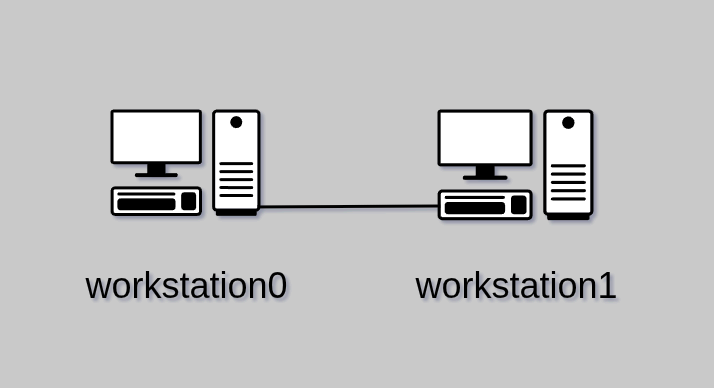
Each of these has a Network Interface Card (NIC) with an ethernet port that the cable plugs into. Each host is identified with a ‘hostname,’ in this case: workstation0 and workstation1. These two nodes now share a direct link, and may pass data back and forth with each other.
Local Area Network (LAN)
This model is overly simplistic, so let’s look at a network that you will be more familiar with. Starting from the top we have a modem, router, and under that a hub, through which the two desktops are now connected. Again, the lines between all these devices represent ethernet cables. For our example, all of these devices are considered ‘local,’ and we call this a Local Area Network (LAN). We’ll learn more about LANs shortly.
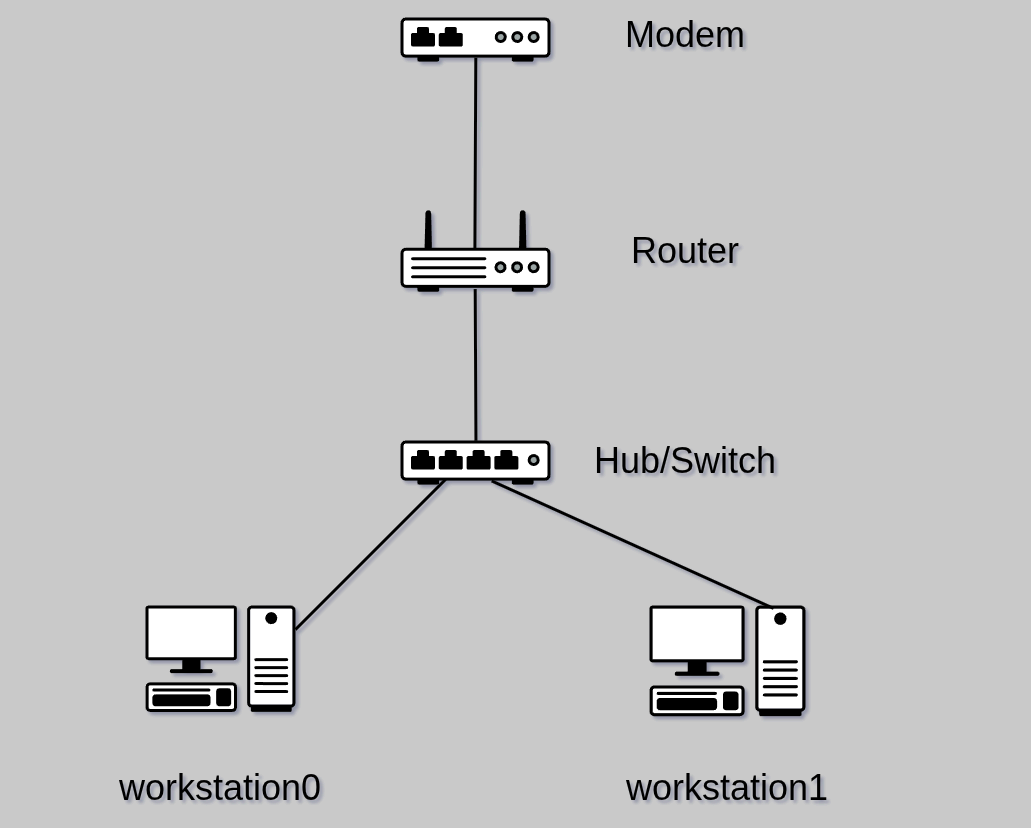
A hub is merely a simple way to split out the ethernet cables. A hub is often called a switch. As we’ll learn in later courses, a switch can sometimes have more features than a hub. Either term is fine, however.
A router is special. This is a computer that is specifically designed to ‘route’ data on a network. In our example, the router is actually creating a network and assigning Internet Protocol (IP) addresses to each device that ‘plugs in’ to this network. We’ll talk more about this in the future, but for now just understand that an IP address is a unique numerical identity, and the router is in control of the numbering process and takes the first address.
You may or may not also have a modulator-demodulator, or modem. This is a device that changes a signal from digital to analog or vice versa when necessary. In a newer setting, you may instead have a fiber optic termination. If you have either of these, they may be ‘upstream’ (closer to your service provider) from your router. Confusingly, you may have a modem/router combo device, which usually also contains a switch. So if you only have one device, it is probably doing several jobs. For the rest of our example, we assume an all-in-one home router/modem/switch.
This network will be one of the most common home IP schemes, 192.168.1.xxx, where xxx is the host’s address. So the router will be 192.168.1.1, the hub does not have an IP, and just passes all traffic blindly, and the two desktop hosts will be 192.168.1.2 and 192.168.1.3.
Note
The hostnames of the devices are visible on the network, and are mapped to the corresponding IP address. This includes the router - we’ll say its hostname is
Router. If you use an external hub to add more ethernet devices, it has neither an IP nor a hostname, and is invisible as far as IP is concerned.
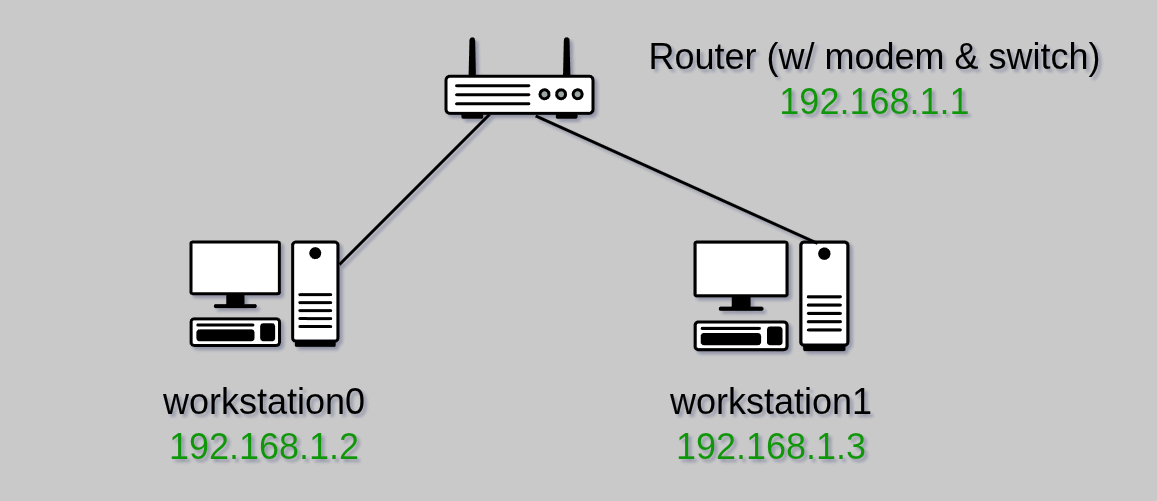
A LAN can expand a lot from here, and you likely have many more devices on your own home/office LAN. This may include desktops, laptops, mobile devices, printers, cameras, security devices, and much more. Many of these may be connected via a wireless radio, which is often a feature included in a modern router, or a separate device ‘downstream’ (closer to your devices) from the router. All devices on the network will be assigned an IP address by the router.
Wide Area Network (WAN)
A Wide Area Network (WAN) is essentially a network of networks. You may see other names for this, such as a Metro (MAN) or Campus (CAN) Area Network. Some even use the term Personal Area Network (PAN) to describe the various connected devices to an individual. For our purposes, we will generally use the term WAN, and we will usually be referring to the Internet.
There is an important distinction between a LAN and WAN that you will generally not see emphasized. We’ll use your home’s LAN as an example. This is a private space, and as long as you aren’t using it to cause loss, injury, or harm to other living beings, then it ought to remain that way. Internet Service Providers (ISPs) will often provide you with equipment, and sadly, some seem to think it is acceptable to give themselves access to your network for their own purposes. Luckily this is easily defended by using your own equipment, which we will cover in depth in a later course.
Here we illustrate a more complete LAN and its relationship to the WAN which we call The Internet.
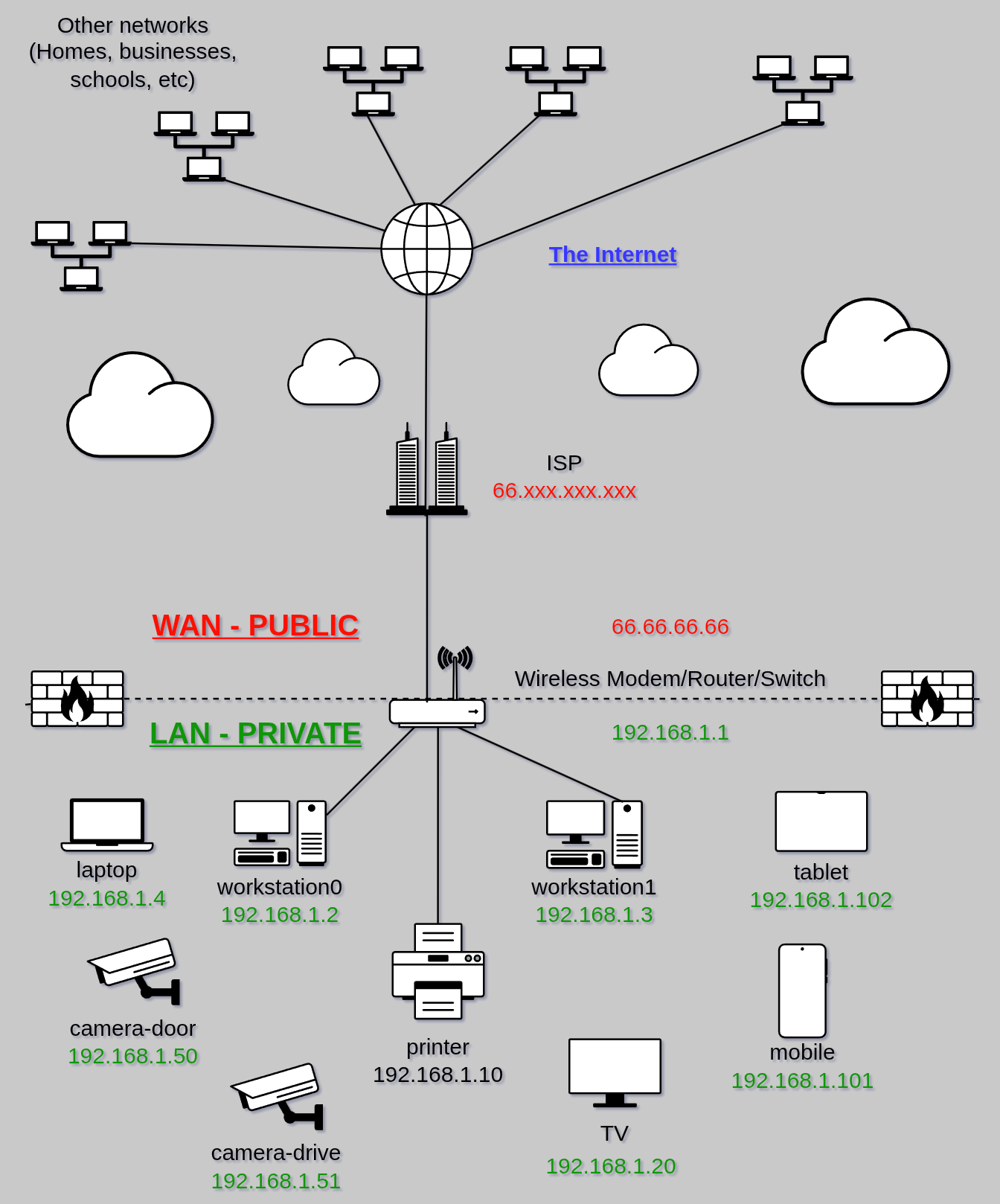
From the top-down, we notice the LANs of other Internet-connected individuals and organizations. As the name implies, The Internet is simply a series of ‘interconnected networks.’ Your connection to this is typically through your Internet Service Provider (ISP). We’ll talk much more about how this came to be and what can be done in the “evil ISP” scenario in another course. From here we reach the WAN/LAN segregation to your network. This line is sometimes called a DMARC (demarcation) and your router acts as a firewall between the public world (WAN), and your private world (LAN). A firewall is also a specific type of network defense tool - again, covered in future courses.
Important
Notice that the router in this example has two IP addresses. These identify two different interfaces, one is the basis of your LAN (192.168.1.1), and one is assigned and controlled by your ISP (66.66.66.66). This assigned IP is publicly viewable by any party you connect with in the WAN, whereas the IP addresses within your LAN are private and not used or seen on the WAN.
A common theme at Neuromancy is that the digital world mirrors the physical. Just like you wouldn’t let a company influence or control your heating, stove, or door locks, there’s no reason to let one influence or control your personal devices and connections. Your router is the front door to your network, and that is where an ISP’s business ends, and your privacy begins.
EXERCISE
Open a terminal and enter the following command:
ip aYou will see something like this:
You may have several interfaces, but probably at least two. In this example, the second interface is an ethernet interface, and below it you can see the local IP address (
192.168.122.181- don’t worry about the/24for now).Next enter the following command:
curl icanhazip.comThis is your public IP address, which is known to any node/network you connect to, and can reveal some basic information about you. If you use a VPN, this address will belong to your VPN provider, providing you some additional privacy. We will cover VPNs extensively.
curlis a command which sends an HyperText Transfer Protocol (HTTP) request to a website and displays the response. We’ll learn more about how the web works in future. If you visit the website icanhazip.com in your browser, you will see the same information displayed.
Basic Networking Relationships
Finally we need to understand some basic networking concepts, specifically, how devices relate to one another. These relationships can happen within your LAN, from a device to a distant Internet-connected device, or between networks more generally.
Centralized, Decentralized, Distributed
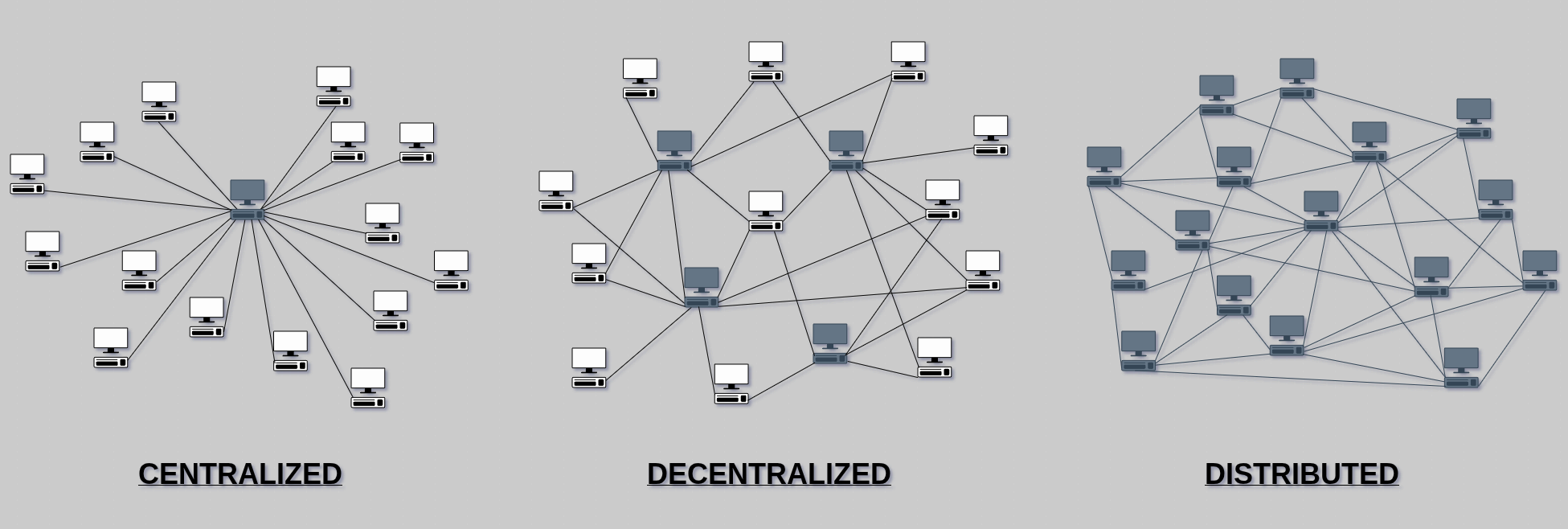
One of the most important concerns is the general relationship of nodes in a network. Network layouts will typically fall along a scale from centralized to distributed.
Centralized networks depend entirely on one node for all communications. This is not very resilient, but is highly efficient. Obviously if the central node goes down, all other nodes are left unable to communicate. However, the transmission of a communications can be managed entirely by one entity, so no cooperation is required to move a message where it needs to go. Decentralized networks depend on a few nodes, and exchange some efficiency for more resilience. Some cooperation is required to deliver messages, but if one of the main nodes goes down, the others will still ensure delivery. Finally is a completely distributed model, where nodes will use any number of nearby nodes to communicate to a remote node. This is entirely resistant to the loss of even most nodes, but routing efficiency becomes challenging.
Clients, Servers, Peers
To this point we have used the terms host or node to represent any computer in a network. Let’s differentiate these a bit.
- Client - A node requesting data or using a service
- Server - A node accepting requests for (serving) data, or providing (hosting) a service
- Peer - A node which both requests and serves data, or provides one end of a mutually beneficial service
Any node can be a client, server, or peer, and even play several roles at once depending on the software and networking it is configured with. Next, we’ll briefly touch on how these roles look in practice.
The Client-Server Model
The client-server model is currently the most common style of communication on The Internet. As shown below, this model means that data or a service is accessed from a server, and clients can request access to that data or service. Whenever you hear the term “the cloud,” this is just referencing a someone’s server. There is nothing inherently wrong with this model. In fact it is efficient, since data/services can reside with just one server and be made available to many clients.
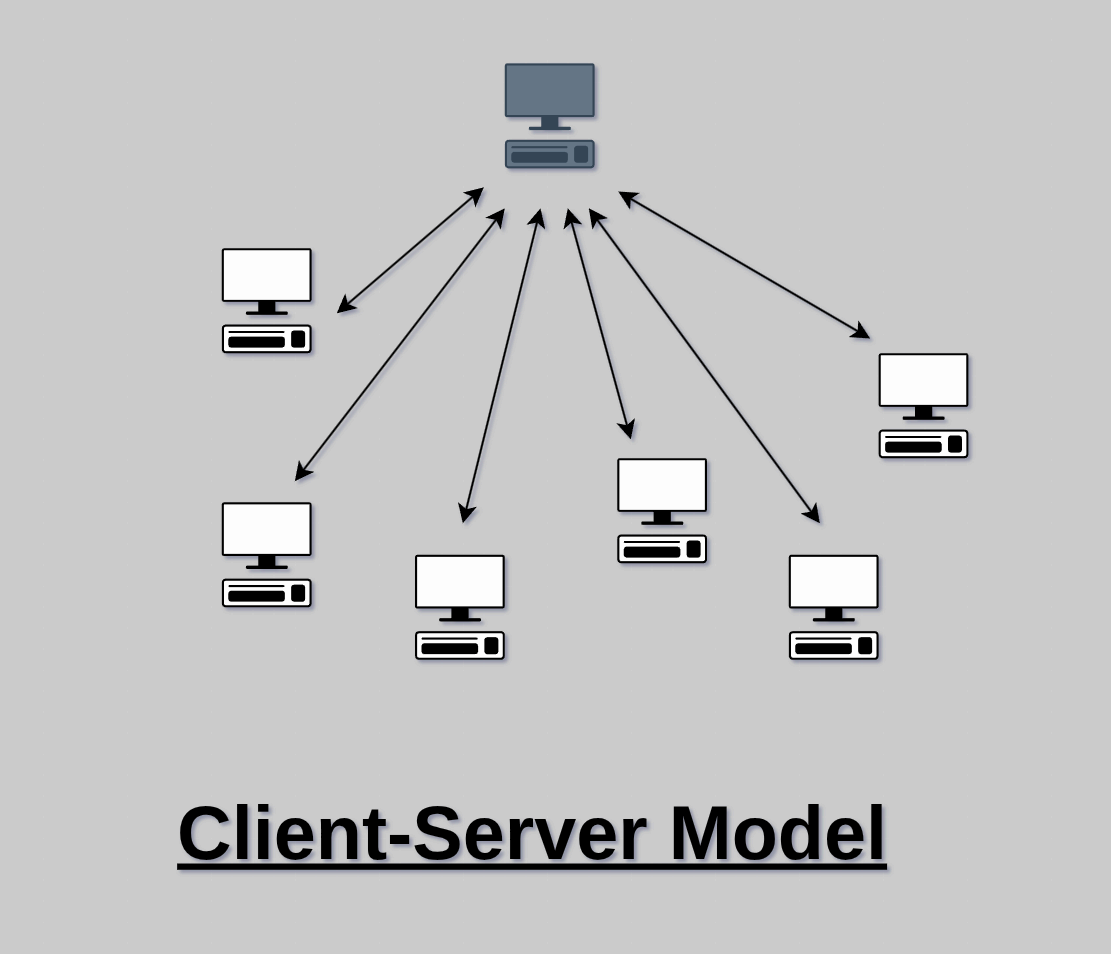
The trade-off is that the server has all the power in this relationship. If poorly managed, or otherwise untrustworthy, a server can present a number of risks to their clients. If entrusted with client data, that data is at risk of loss, restricted access, or being shared/sold with third parties without informed consent. If running a service, the server’s owner has supreme authority over that service, and if malicious, can potentially snoop on or manipulate client interactions.
The idea here isn’t to scare you into never using someone else’s server again, but to understand the model and the risks. Just like visiting someone’s property in the real world, a beneficial operator can provide great value from a server. You are likely connected to a Neuromancy server right now, of course. What we do want to do however, is start to understand who really owns our data and tools, and where it makes sense, regain control over them.
Peer-to-Peer (P2P) Model
Peers, as the name implies, are nodes that share an equal status. They often both serve and acquire data simultaneously. For example, when using a file-sharing protocol like BitTorrent, peers will download chunks of data of a file while simultaneously uploading any parts they already have. Peer-to-peer relationships are egalitarian and P2P networks are extremely resilient once bootstrapped.
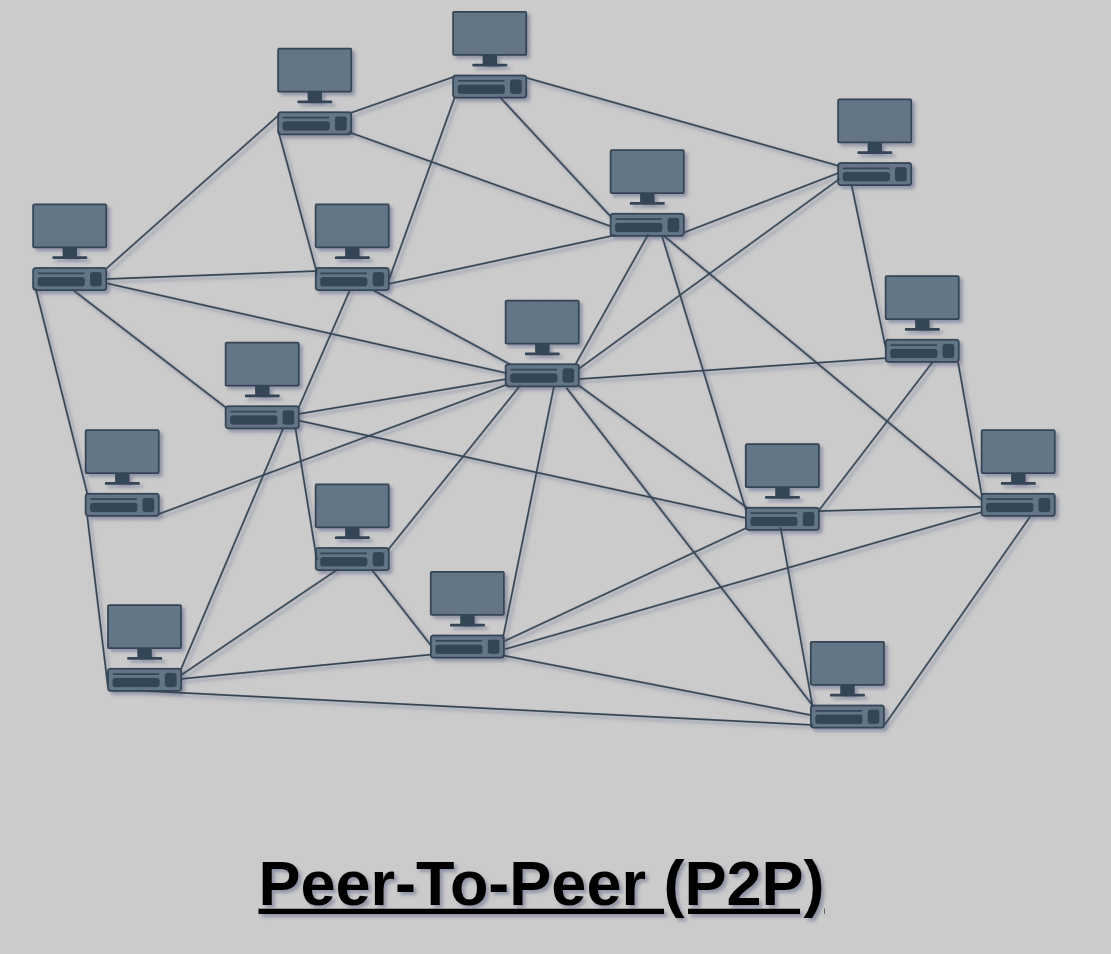
As you can see, this is essentially the completely distributed model we examined earlier. We will be learning and utilizing many Peer-to-Peer technologies going forward.
Software Acquisition
After spending some time understanding where things are on your machine, one of the first things you will need to do is begin to acquire the tools that you need to achieve your goals.
Note
Software, binary, package, and application are all terms used interchangeably. Various organizations may use these terms differently, but they are all the same for the purpose of this course.
Package Managers
Whether via the terminal, or wrapped in a nice GUI, your distribution will come with some sort of package manager. A package is just another name for software, which is put together or “packaged” for your system (architecture, OS, etc). We will begin by learning our package manager via the terminal, because this is more powerful, but again, you may prefer to use a GUI day-to-day.
CLI (Command Line Interface) Tools
This is the first time that we will split instructions based on the system you are using, so select the tab below for your system. You can come back here if you want to try the other documented option later.
Note
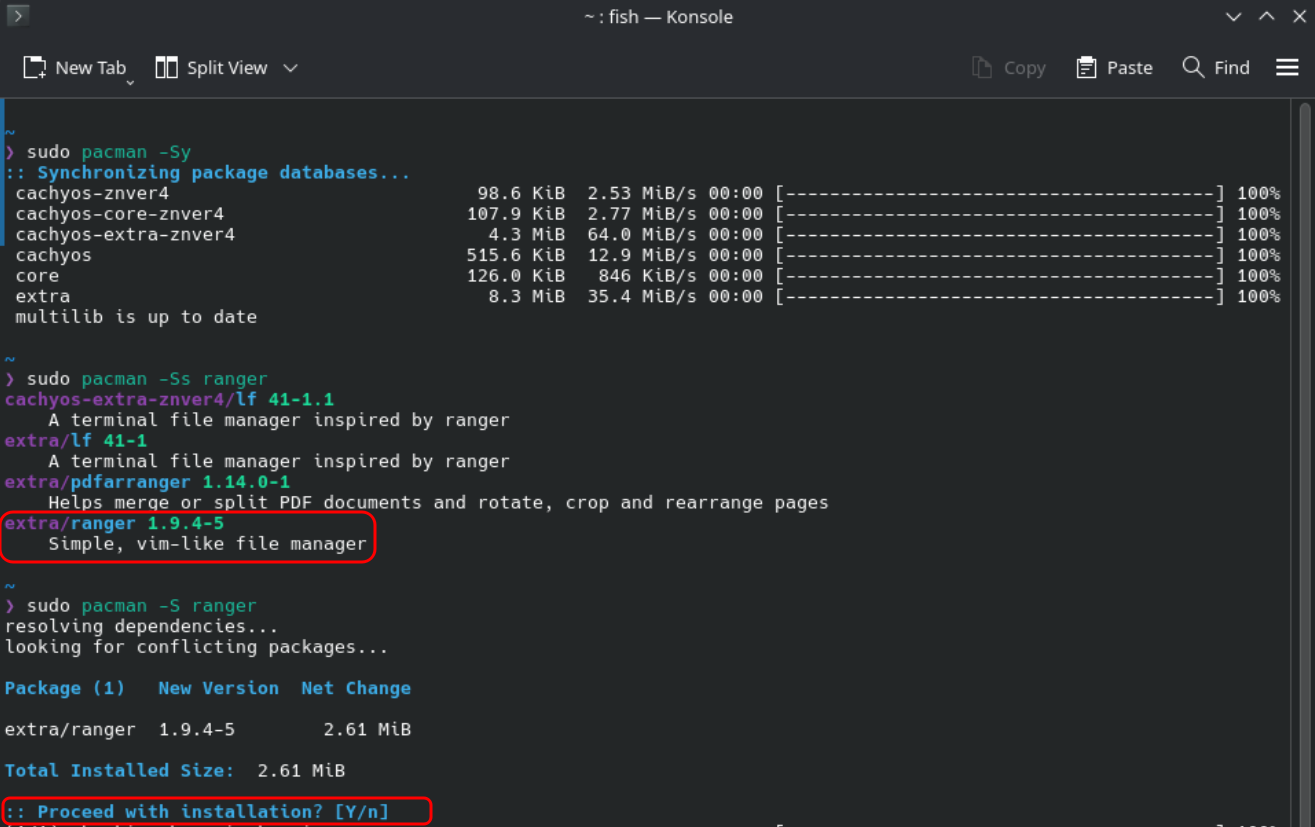
Remember, Debian-based systems include Debian, Linux Mint, Zorin, Ubuntu, and many others. Arch-based systems include Arch, CachyOS, Garuda, Manjaro, Artix and others. If you’re not sure about your distro, ask.
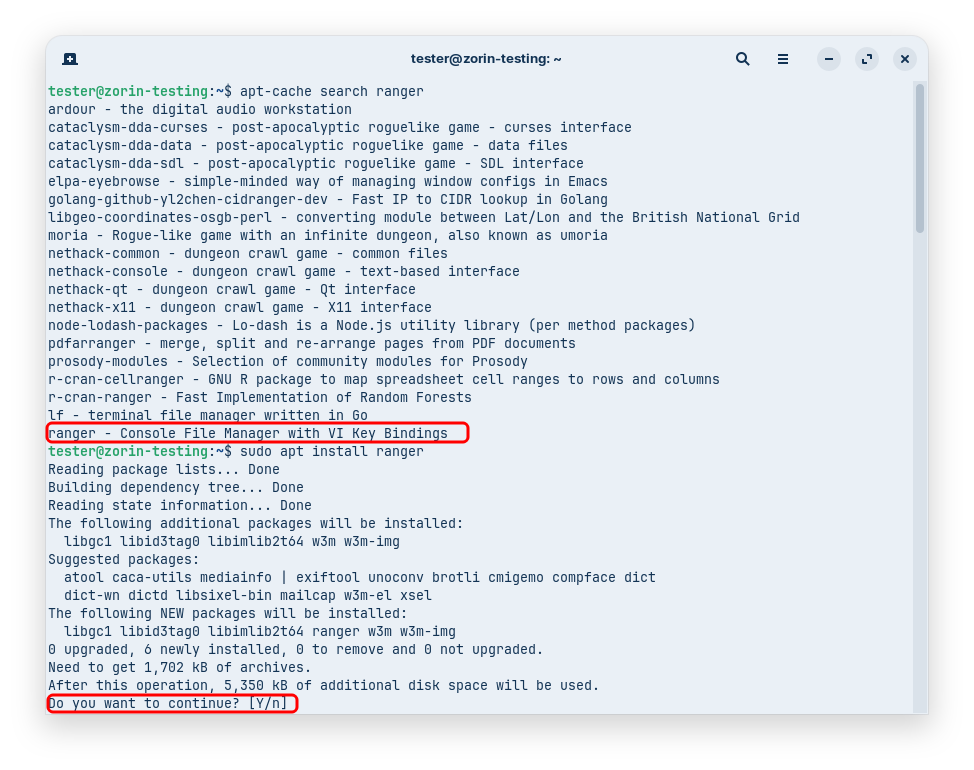
Debian-based systems use apt, the Advanced Package Tool. Go ahead and open a terminal and enter the following commands:
-
sudo apt update- Here we see
sudofor the first time. This is short for “superuser do,” and allows you to run commands with elevated privileges. This requires your user password for each session (and may timeout).aptis our program, andupdateis the option. In this case we are checking pre-defined software repositories for updates to packages already on our system. A repository is simply a place where code is publicly or privately stored for retrieval.
- Here we see
-
apt-cache search ranger- The
apt-cachecommand can be used to query available packages. Obviously, thesearchoption let’s us look for a package based on a keyword. We’re looking for therangersoftware. This search will yield several options. - Notice that
sudois not required since the operation does not affect your system.
- The
-
sudo apt install ranger- Next we’ll use the
installoption to actually get a package. - You will be asked to confirm the install, press
yon your keyboard to do so (the default option, in this caseYis capitalized, so you can also just hitreturn). - The
rangersoftware is a CLI (Command Line Interface) file explorer. We won’t require or dive on this tool, but you may find it useful.
Tip
Use GUI and/or CLI tools however you prefer. That said, in a terminal you can become extremely fast since the keyboard has so many possible actions, and your hands never have to move to the mouse. Proficiency has major benefits, especially if you want to pursue security, programming, or systems administration.
- Next we’ll use the
-
ranger- Let’s check out our new tool by starting it. You can navigate with the arrow keys or Vim bindings - a concept we’ll cover later. Use
qto quit. If for any reason that doesn’t work, it’s okay to close the terminal window and open a new one.
- Let’s check out our new tool by starting it. You can navigate with the arrow keys or Vim bindings - a concept we’ll cover later. Use
-
Optional
sudo apt remove ranger- If you don’t want this tool for now, you can uninstall it with this
aptcommand.
- If you don’t want this tool for now, you can uninstall it with this
-
clear- You may like to clean up when you move to a new task with the
clearcommand.
- You may like to clean up when you move to a new task with the
-
sudo apt upgrade- Lastly let’s update everything on our system. Again we call the
aptcommand, this time with the instruction to upgrade any packages with new versions available. If you continue with this command, a reboot may be suggested to you (usually for Linux kernel updates). If you don’t reboot now, be sure to do it soon.
- Lastly let’s update everything on our system. Again we call the
GUI (Graphical User Interface) Tools
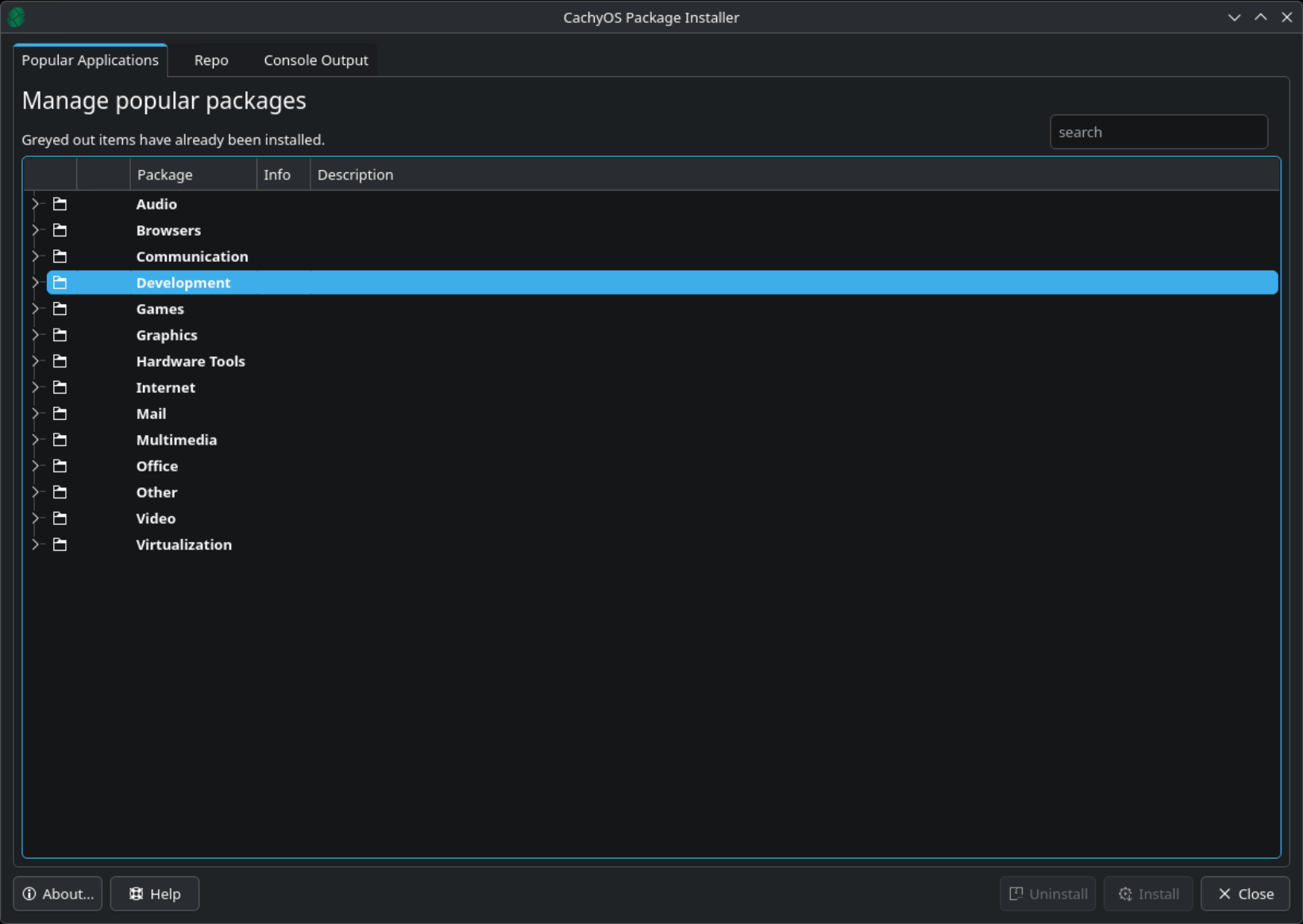
GUIs will vary more significantly, even within a given distribution family. We will only briefly introduce a couple of these. Remember that these will usually just be a graphical interface on top of the above introduced software (in the case of Debian/Arch), and they are largely intuitive.
Let’s quickly look at the ZorinOS/GNOME graphical software center, simply called “Software.”
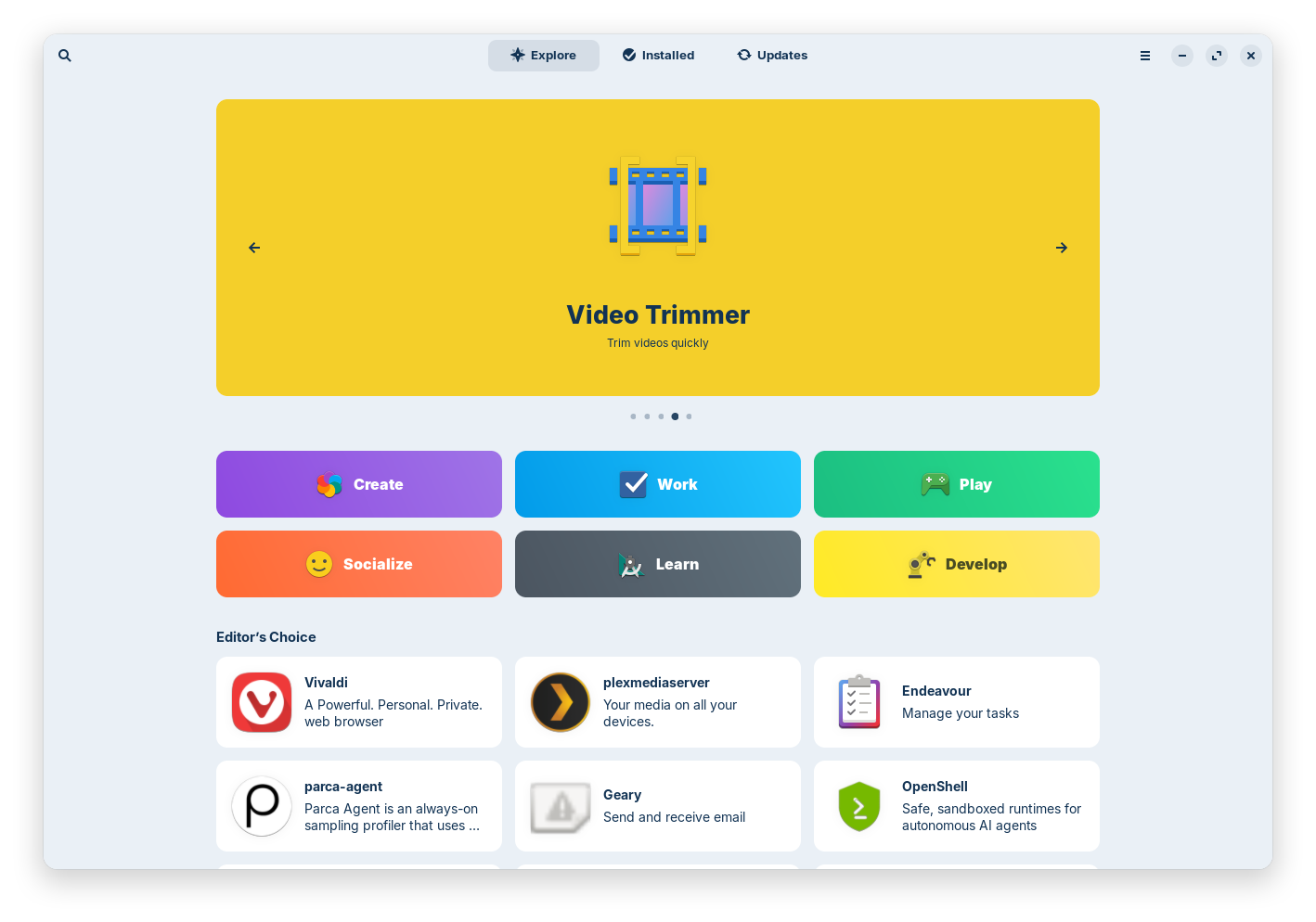
- At the very top left is the search icon which you can use to search for new software.
- The default ‘Explore’ tab let’s you browse software from the pre-selected repositories.
- The ‘Installed’ tab shows software already installed on your system.
- The ‘Updates’ tab shows any available updates for your installed packages.
- Lastly the top-right menu (three horizontal lines are known as a ‘hamburger menu’) contains your Repositories, Preferences, and more.
We’ll talk further on code repositories in future.
Snaps, Flatpaks, and AppImages
There are some relatively new styles of packaging software that attempt to make software more portable across Linux distributions. Snaps and Flatpaks add some additional security via sandboxing, but require you to use the snap and flatpak software to run them. AppImages are simple files that can be run directly, which are lightweight, but carry no additional security. More discussions on these ecosystems will come in the future, especially as they mature and developers decide how they prefer to distribute their software.
Building/Compiling from Source
This is ultimately where all our software comes from. The code written by a developer must be built or ‘compiled’ from the language it was written in, into a machine-readable (and yes, ‘human-unreadable’) format that your system can run, known as a ‘binary.’ It’s called a binary because it’s zeroes and ones. Most of the software acquisition we’ve looked at involved downloading pre-compiled binaries, or in some cases, the package manager may build the binary for you.
For now, we’re just introducing the idea and terms so you are familiar. We’ll save the process of compiling software from source for another course since more foundational concepts must be introduced first.
White Level Review
- Neuromancy 101
- What is Neuromancy?
- People - Guests, Contributors, Members, Operators, Special Operators, Architects
- Dispute resolution
- Requirements
- Environment
- Hardware
- Software
- Natural Law 101
- State the Law
- Define it
- Why is it important?
- Trivium Method
- Knowledge / Input
- Understanding / Processing
- Action / Output
- Care
- Freedom Technology 101
- Understand terminology
- Tool selection methodology
- General
- Hardware
- Software
- Technology Operations 101
- Linux
- How can you begin?
- What is Linux?
- Distributions
- Desktop Environments
- Window Managers
- Heirarchical File System (HFS)
- Define
- Navigate HFS via terminal
pwdlsmkdircdrm
- Navigate HFS via GUI
- File manipulation
mvcp&&echocat
- Networking
- What is a network?
- LAN
- WAN
- Private v Public (firewall)
- Basic commands
ipcurl
- Relationships
- Centralized, Decentralized, Distributed
- Clients, Servers, Peers
- Client-Server
- Peer-to-Peer (p2p)
- Software Acquisition
- Package Managers
- Basics with
aptORpacman- Sync repositories
- Search repos
- Install software
- Remove software
- Update system
- GUI package managers
- Snaps, Flatpaks, AppImage
- Building from Source
- Basics with
- Package Managers
- Linux